
NVD RTX PRO 6000 Blackwell
4.3Editor score
96GB GDDR7 ECC memory
Fifth-generation Tensor Cores
PCIe 5.0 bandwidth
This guide compares the 10 best GPU for Comfyui options, covering memory, speed, cooling, compatibility, and workload needs.
ComfyUI can turn an ordinary graphics card into a powerful local image-generation workstation, but the right GPU depends heavily on the models, resolutions, and workflows you plan to run. Memory capacity, processing throughput, power requirements, and physical fit matter more than gaming-oriented branding alone.
This guide compares ten NVIDIA GeForce, NVIDIA RTX Professional, Intel Arc Pro, and AMD Radeon options using their supplied specifications. The comparison covers graphics memory, architecture, cooling design, power guidance, display features, workstation capabilities, and practical constraints that can affect ComfyUI use.
Each selection highlights a different path, from compact entry-level cards to memory-rich professional hardware. Ratings and product details reflect the supplied listing information, while availability and pricing can change. Review current listings, system requirements, and software compatibility before purchasing.
4.3Editor score

4.7Editor score

3.9Editor score
The following side-by-side comparison highlights the major hardware differences among all ten GPUs, including memory capacity, architecture, cooling, dimensions, and power requirements.



The NVD RTX PRO 6000 Blackwell is the clear premium choice for ComfyUI users who need substantial graphics memory without relying on multiple cards. Its defining specification is 96GB of GDDR7 ECC memory, far beyond the capacity offered by conventional gaming GPUs. The supplied listing gives it a 4.3 rating and emphasizes professional AI, simulation, engineering, and design capabilities.
We may earn a commission when you buy through this link, at no additional cost to you.
The fifth-generation Tensor Cores support FP4 precision, which the manufacturer says can accelerate AI model processing while reducing memory usage. A 1.8 TB/s memory bandwidth and PCIe 5.0 interface also suit data-intensive workflows. Universal MIG support can divide the GPU into isolated instances with dedicated resources, making it particularly interesting for simultaneous services, separate users, or multiple ComfyUI workloads.
The trade-offs are substantial. This is a 600W professional card requiring careful system cooling, a suitable power delivery setup, and a chassis with enough physical room. It also ships in bulk OEM packaging without retail packaging. Buyers outside the United States must investigate U.S. export regulations, licensing, and compliance screening before assuming an order can be fulfilled.
Choose the RTX PRO 6000 when memory capacity, reliability, and workload isolation are more important than compactness or economy. For large models, complex node graphs, high-resolution diffusion, professional pipelines, or a dedicated local AI workstation, its 96GB pool offers room that consumer alternatives cannot match. It is the strongest option here for demanding, sustained ComfyUI work.
With 96GB of ECC GDDR7 memory, this card can address workloads that would quickly exhaust an 8GB or 12GB GPU. The extra capacity can accommodate larger models and more of the working data involved in complex ComfyUI graphs, while ECC can help protect valuable long-running professional workloads from memory errors.
Universal MIG allows multiple isolated GPU instances with dedicated resources. That separation is valuable when serving different models, organizing several ComfyUI projects, or sharing a workstation among users without allowing one workload to consume every available resource.
We may earn a commission when you buy through this link, at no additional cost to you.
The ASRock Intel Arc Pro B60 Creator stands out because 24GB of GDDR6 memory is unusually generous compared with many similarly sized alternatives. Its supplied rating is 3.9, but the underlying specifications make it a compelling consideration for ComfyUI users who prioritize memory capacity, physical practicality, and a straightforward workstation configuration.
We may earn a commission when you buy through this link, at no additional cost to you.
The Xe2-HPG architecture includes 20 Xe cores and 160 XMX engines, with the listing stating 197 INT8 TOPS of AI acceleration. A 192-bit memory bus provides 456 GB/s bandwidth, while PCIe 5.0 x16 support helps with host-to-device data movement. The card also includes dual media transcoders for AV1, H.264, and HEVC workflows.
Its main practical challenge is compatibility. Intel graphics hardware may require current operating-system drivers, a supported PyTorch environment, and an up-to-date ComfyUI installation. Users should verify that the necessary AI frameworks and kernels support the platform rather than assuming compatibility identical to NVIDIA or AMD. The single blower fan also offers less flexibility than a quiet multi-fan cooler.
The B60 is best for builders who want more memory than a typical entry-level card, need a compact two-slot design, and are comfortable validating Intel software support. Its 200W TDP and single eight-pin connector simplify integration, while 24GB makes larger models and multi-stage ComfyUI graphs more attainable than on an 8GB card.
The 24GB pool gives ComfyUI more room for models, latent data, reference assets, and concurrent operations. That headroom can make workflows easier to assemble without immediately relying on aggressive offloading, although actual model support still depends on the chosen checkpoint and software configuration.
The two-slot, 271 by 112 by 39 millimeter design and single eight-pin connector make installation relatively approachable. At 200W TDP, it also asks less from a power supply than high-end professional cards, although chassis clearance and PSU capacity should still be verified.
We may earn a commission when you buy through this link, at no additional cost to you.
The ASUS Dual GeForce RTX 5060 Ti 16GB GDDR7 OC combines a 4.7 rating, 16GB of GDDR7 memory, and a relatively compact 2.5-slot design. That combination makes it our editor's choice for users seeking a sensible balance between ComfyUI capability, physical compatibility, and modern NVIDIA features.
We may earn a commission when you buy through this link, at no additional cost to you.
The card uses the Blackwell architecture and is listed at 767 AI TOPS, giving it dedicated AI-oriented hardware beyond conventional rendering performance. Its OC mode reaches 2632 MHz versus a default mode of 2602 MHz. Axial-tech fans move air downward through the card, while dual BIOS profiles let users choose a quiet configuration or performance-focused settings.
The main limitation is that 16GB is not the same as 24GB or 96GB. Very large models, multiple simultaneous high-resolution generations, or workflows that keep many components resident may require more memory. Even with 16GB, users should monitor VRAM use and understand whether a particular ComfyUI node supports CPU offloading effectively.
This RTX 5060 Ti is a strong recommendation for a dedicated home AI workstation that will run common ComfyUI image-generation workflows and also benefit from NVIDIA-specific AI features. Its 2.5-slot design is easier to accommodate than many triple- and quad-fan alternatives, while GDDR7 memory and strong AI specifications make it more future-oriented than a basic 8GB option.
The listed 767 AI TOPS reflects a strong focus on neural workloads rather than gaming alone. For ComfyUI, that makes the card appealing when the goal is responsive inference and image generation without moving into professional workstation hardware.
The dual BIOS switch is useful for balancing acoustic output and sustained performance. A quiet profile can help during light tasks, while the performance profile is available when a generation workload benefits from higher clocks and more aggressive cooling.
We may earn a commission when you buy through this link, at no additional cost to you.
The GIGABYTE GeForce RTX 5080 OC is a high-performance NVIDIA option for ComfyUI users who want a capable modern GPU with a wide memory interface. Its supplied rating is 4.6, and the card combines Blackwell architecture, 16GB of GDDR7 memory, a 256-bit bus, and PCIe 5.0 support.
We may earn a commission when you buy through this link, at no additional cost to you.
The wide bus is the specification most likely to appeal to generative-AI buyers because it supports greater memory throughput than narrower designs. Combined with GDDR7, this should favor workloads that repeatedly exchange data between models, latent tensors, and processing pipelines. The WINDFORCE cooling system is designed to dissipate heat from this higher-performance configuration.
The important limitation is memory capacity. A 16GB card can handle many mainstream workflows, but its total capacity remains the hard ceiling for resident models, batches, high-resolution latents, and multi-node graphs. Users who routinely load exceptionally large models should not assume a faster memory bus eliminates the need for offloading or additional VRAM.
This card is most compelling for someone who values high-throughput NVIDIA performance and already plans to build a capable desktop. It is better suited to sustained production than the smaller selections in this guide, while professionals needing much larger addressable memory should look toward the 24GB Arc Pro or 96GB RTX PRO 6000.
A 256-bit GDDR7 interface is well suited to AI workflows that move large volumes of data between processing stages. The architecture can help keep the GPU busy during complex ComfyUI graphs, provided the workflow does not exceed the card's 16GB memory limit.
PCIe 5.0 support helps maximize host-to-device transfer bandwidth and pairs naturally with current high-speed platforms. A compatible CPU, motherboard, and power supply remain important because the graphics card is only one part of the complete workstation.
We may earn a commission when you buy through this link, at no additional cost to you.
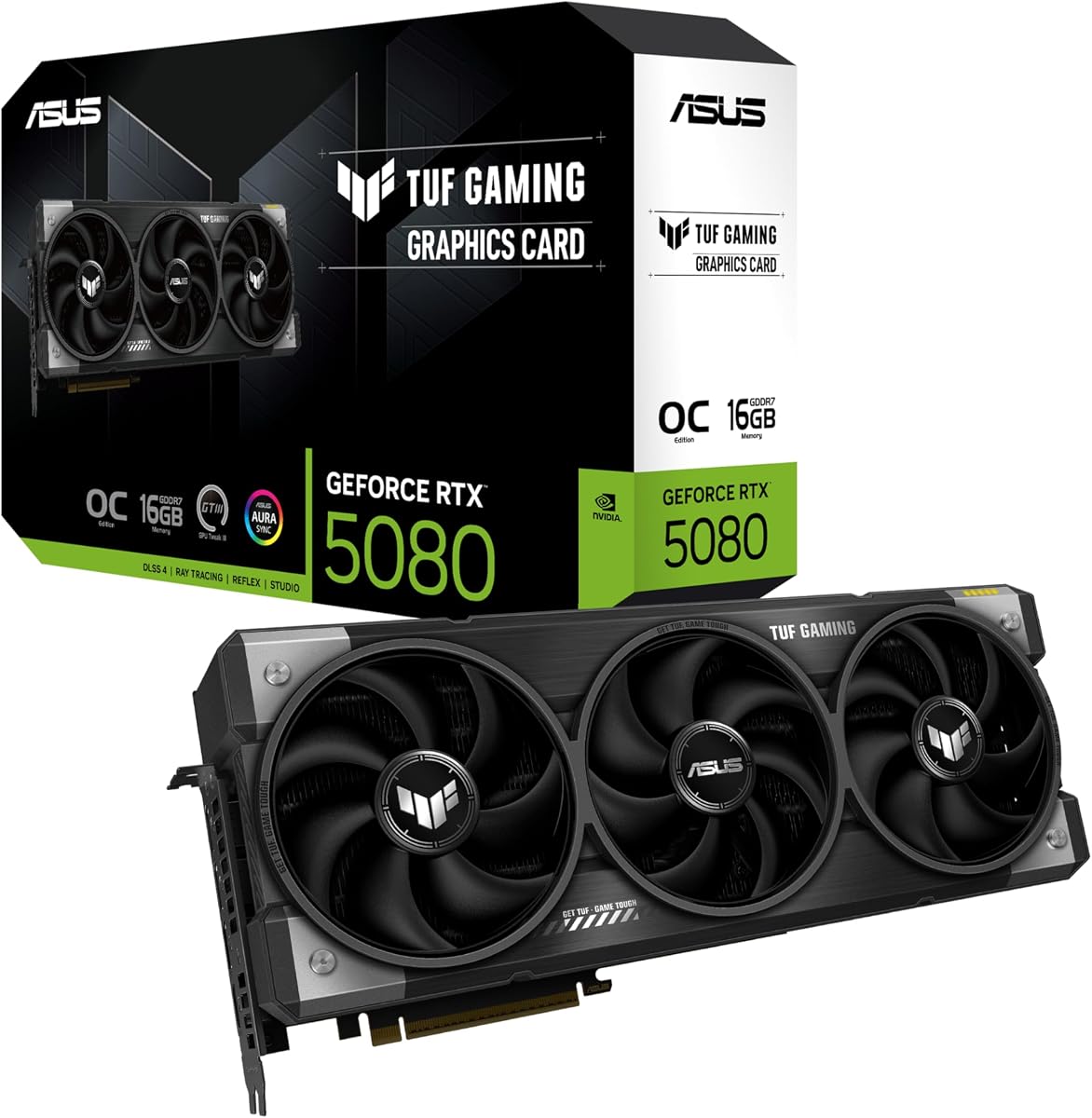
The ASUS TUF Gaming GeForce RTX 5080 OC is a robust, high-clock version of NVIDIA's RTX 5080 platform. It carries a 4.6 rating and is built around 16GB of GDDR7 memory, Blackwell architecture, and an overclocked boost clock of 2730 MHz, compared with a default boost clock of 2700 MHz.
We may earn a commission when you buy through this link, at no additional cost to you.
Its thermal design receives particular attention. Three Axial-tech fans feed a massive fin array, while a phase-change GPU thermal pad is designed to maintain thermal performance during prolonged heavy loads. A protective PCB coating helps guard against short circuits caused by moisture, dust, or debris, adding confidence for a workstation that may remain powered for extended sessions.
Physical and electrical demands are the primary drawbacks. The card measures 348 millimeters long and occupies 3.6 slots, so it may not fit in compact cases or systems with tightly spaced expansion slots. The manufacturer specifies a minimum 850W system power supply with a 16-pin 12V-2×6 connector, making PSU quality and cable routing essential.
Buy this TUF model when you want a high-end RTX 5080 with enhanced cooling, a factory overclock, and useful monitoring controls. For ComfyUI, it is well suited to high-throughput production on 16GB-sized workloads. If your priority is accommodating more models in memory rather than maximizing clocks, a 24GB or 96GB option may be a smarter fit.
Generative-AI jobs can sustain heavy GPU activity much longer than many graphics benchmarks. The three-fan cooling system, large fin array, and phase-change pad are therefore relevant features, particularly when ComfyUI will run queued jobs or serve multiple users.
The 348 millimeter length and 3.6-slot thickness demand a chassis with adequate clearance. The specified 850W power-supply requirement should be treated as a baseline, with the complete system drawing power rather than the graphics card alone.
We may earn a commission when you buy through this link, at no additional cost to you.
The GIGABYTE Radeon RX 9070 XT Gaming OC 16G offers an AMD route into local image generation and creative GPU workloads. Its 4.7 rating, 16GB of GDDR6 memory, and PCIe 5.0 interface make it an attractive alternative for builders who do not want to use NVIDIA hardware exclusively.
We may earn a commission when you buy through this link, at no additional cost to you.
The WINDFORCE cooling system, Hawk fan design, and server-grade thermal conductive gel focus on maintaining performance under load. RGB lighting adds visual appeal, although the more important issue for ComfyUI is software readiness. Users should verify that their preferred checkpoint, custom nodes, quantization methods, and PyTorch setup support the Radeon platform they intend to install.
AMD graphics can be a sensible choice for standard image-generation tasks, but specialized nodes may rely on NVIDIA-specific extensions or CUDA-oriented workflows. That means raw memory capacity does not tell the entire compatibility story. The lack of a listed AI TOPS figure also means the supplied data does not support a direct quantitative comparison with the NVIDIA cards that publish such numbers.
This Radeon is recommended for a user with a compatible AMD software stack who wants a well-rated 16GB card with modern expansion bandwidth. It may also appeal to builders seeking platform variety. Before committing, confirm that every essential ComfyUI node in the intended workflow has current support for the chosen driver and PyTorch configuration.
Check the full node chain before selecting this card, not just the main interface. Custom nodes, upscalers, video tools, and model loaders may have different requirements, and a successful basic installation does not guarantee that every extension will operate on Radeon hardware.
A 16GB pool is enough for many common workflows and provides more room than entry-level alternatives. It is particularly useful for detailed workflows, but users running unusually large models or keeping several pipelines active may need to offload layers or consider a higher-memory product.
We may earn a commission when you buy through this link, at no additional cost to you.
The ASUS Dual Radeon RX 9060 XT 16GB combines a 4.7 rating with a useful amount of graphics memory and a relatively compact 2.5-slot cooler. It is an interesting choice for ComfyUI builders who want more VRAM than a basic entry card without moving to a physically large workstation GPU.
We may earn a commission when you buy through this link, at no additional cost to you.
ASUS lists an OC-mode boost clock of up to 3250 MHz, a game clock of up to 2640 MHz, and corresponding default-mode values of 3230 MHz and 2620 MHz. Axial-tech fans use a smaller hub and longer blades, while dual ball fan bearings are stated to last up to twice as long as sleeve-bearing designs.
As with the larger RX 9070 XT, compatibility should be the deciding technical factor. The supplied specifications do not provide an AI TOPS value, direct ComfyUI benchmark, or detailed framework support statement. That makes the 16GB capacity and compact design attractive on paper, but software verification remains necessary before buying for a particular custom-node ecosystem.
The Dual RX 9060 XT 16GB is best for creators who already use AMD-compatible workflows or want a compact card with a generous memory pool. The dual BIOS switch makes it easy to favor quiet operation during editing and stronger performance during generation. Confirm current ComfyUI, PyTorch, and custom-node support before finalizing the purchase.
The 16GB allocation is the defining advantage of this model. It provides more room for ComfyUI graphs than many lower-capacity alternatives while retaining a 2.5-slot design that is easier to fit than many enthusiast coolers.
The dual BIOS switch offers separate Quiet and Performance profiles. This makes it easier to reduce fan activity during browsing or image review, then choose the performance profile when a long generation job needs maximum clock headroom.
We may earn a commission when you buy through this link, at no additional cost to you.
The ASUS TUF Gaming GeForce RTX 5070 OC is a well-rated midrange NVIDIA card with a 4.7 supplied rating. It uses Blackwell architecture, supports DLSS 4, and includes 12GB of GDDR7 memory, making it suitable for ComfyUI users whose workflows fit comfortably within a conventional consumer-GPU memory budget.
We may earn a commission when you buy through this link, at no additional cost to you.
Its cooling system uses three Axial-tech fans and a substantial fin array within a 3.125-slot design. The factory OC mode reaches 2640 MHz, compared with a default boost clock of 2610 MHz. ASUS also emphasizes military-grade components, a protective PCB coating, a phase-change thermal pad, GPU Guard, and precise automated manufacturing for reliability.
Twelve gigabytes is the critical limitation. It leaves less room than the 16GB alternatives in this guide for large checkpoints, multiple resident models, high-resolution batches, and intricate ComfyUI graphs. The card may generate correctly while forcing more aggressive CPU offloading, but the experience can become less responsive depending on system memory and workload.
This RTX 5070 is best for mainstream ComfyUI projects, content-creation systems, and builders who want NVIDIA software support and modern features without moving to a 16GB configuration. Its large cooling design also means case clearance matters. If memory capacity is the primary concern, a 16GB card offers a more future-proof foundation.
The protective PCB coating, component selection, and GPU Guard system focus on stability and mounting security. These features are useful in a creation workstation that may remain on for long rendering queues rather than powering down after a short gaming session.
With 12GB of GDDR7, the card can run many standard ComfyUI workflows, but the capacity limits how many components can remain in VRAM simultaneously. Review model requirements and keep a larger-memory upgrade path in mind for future checkpoints.
We may earn a commission when you buy through this link, at no additional cost to you.
The ASUS Dual GeForce RTX 5050 OC is built for builders seeking a small NVIDIA card rather than maximum ComfyUI throughput. It has a 4.3 rating, 8GB of GDDR6 memory, a 2-slot small-form-factor design, and a listed AI performance of 433 TOPS.
We may earn a commission when you buy through this link, at no additional cost to you.
The card operates at up to 2677 MHz in OC mode and 2647 MHz in default mode. Dual BIOS profiles provide quiet and performance options, while 0dB technology keeps the fans stopped at light activity. Axial-tech fans and dual ball fan bearings provide the cooling and longevity features associated with ASUS's Dual line.
The memory limit is decisive. Eight gigabytes leaves relatively little room for large diffusion models, multiple ControlNet-style components, high-resolution generation, or several workflows running at once. CPU offloading can make some models usable, but it introduces extra data movement and may reduce responsiveness. This card should be judged as a compact starting point rather than a high-end AI accelerator.
The RTX 5050 is most appropriate for small systems, lightweight models, learning experiments, and users who value NVIDIA compatibility and a compact footprint. If the intended ComfyUI graph includes large checkpoints or multiple simultaneous stages, spend the additional budget on a 16GB or 24GB option to avoid memory constraints.
The two-slot design and SFF-ready positioning make this card easier to install in compact cases. It is a practical option when large coolers, multi-slot graphics cards, or substantial power requirements would disrupt an otherwise small workstation build.
The card's 8GB allocation is most suitable for smaller models and modest graphs. Start by measuring peak VRAM use with your intended workflow, because a workflow that appears simple can still retain several models, control components, and image buffers at once.
We may earn a commission when you buy through this link, at no additional cost to you.
The PNY NVIDIA GeForce RTX 5060 OC is a compact, dual-fan Blackwell card with a 4.4 rating. Its appeal lies in efficient cooling, a factory-tuned 2535 MHz boost clock, and broad compatibility with small-form-factor, slim, mid-tower, and media-center systems.
We may earn a commission when you buy through this link, at no additional cost to you.
Two fans distribute heat across the compact cooler, providing thermal headroom without requiring a full-length multi-fan cooler. VelocityX software lets users adjust core and memory clocks, create custom fan curves, monitor temperatures and speeds, and save up to five profiles for quick recall.
The supplied listing identifies the RTX 5060 but does not state the graphics-memory capacity, so buyers should verify the exact card specification before committing. That omission matters in ComfyUI because memory is one of the most important selection criteria. The broader NVIDIA Blackwell platform includes fifth-generation Tensor Cores and fourth-generation ray-tracing hardware, but the available data does not provide an AI TOPS figure for direct comparison.
This PNY card is a good fit for compact builds and users who value straightforward tuning in a reasonably sized package. It may serve lighter ComfyUI workflows particularly well, but buyers should confirm memory capacity, power requirements, and accelerator support against the intended model set. For guaranteed headroom, the 16GB selections are easier to assess.
The dual-fan layout spreads cooling across a shorter board, making the card suitable for cases where a three- or four-fan model would not fit well. Its compact construction can also leave more room for airflow or additional components in a small workstation.
VelocityX's five saved profiles are useful for different stages of a creation session. A quiet profile can handle light ComfyUI activity, while a separate performance profile can preserve higher clocks for queued generation or other sustained GPU work.
We may earn a commission when you buy through this link, at no additional cost to you.
Choosing a ComfyUI GPU means balancing memory capacity against compute speed, software support, power requirements, and the physical design of your workstation. The following factors help narrow the field before you invest in a card.
VRAM is the first constraint to evaluate because ComfyUI must hold models, text encoders, control components, latent tensors, and intermediate results in GPU memory. A model that fits in 8GB may become impractical when a graph adds upscalers, masks, multiple samplers, or high-resolution output. Cards with 16GB or 24GB provide more breathing room, while 96GB professional memory is intended for much larger professional pipelines.
Prioritize enough memory for your largest realistic workflow, not merely the size of one checkpoint. Measure peak VRAM use with the models and nodes you plan to use, and leave additional headroom for future model releases.
After memory, consider how quickly the GPU can execute neural operations. NVIDIA's Blackwell cards in this list publish AI TOPS figures, with the RTX 5060 Ti listed at 767 AI TOPS and the RTX 5050 at 433 AI TOPS. These numbers are useful indicators within a supported platform, but they are not directly interchangeable with real ComfyUI completion times across different models.
Look for current software support, optimized kernels, and a clear upgrade path within your preferred ecosystem. A fast architecture with unsupported custom nodes may be less useful than a slightly slower card that runs your workflow reliably.
The graphics ecosystem matters because ComfyUI's underlying AI stack behaves differently across vendors. NVIDIA generally offers the broadest familiarity with CUDA-centered workflows, while AMD and Intel can provide capable alternatives when the required drivers, PyTorch builds, and custom nodes are supported. Intel's Arc Pro B60 includes 24GB of memory and scales across multiple Linux GPUs, but buyers should validate the exact nodes they need.
Check every essential custom node and model loader rather than relying on broad platform claims. Verify current driver support, operating-system compatibility, and whether your preferred workflows depend on vendor-specific acceleration features.
Generative-AI workloads can keep a GPU under sustained load, making cooling central to both performance and reliability. The ASUS RTX 5060 Ti uses a compact 2.5-slot cooler, the Arc Pro B60 uses a single blower, and the TUF RTX models use larger triple-fan assemblies. Each approach has different advantages for airflow, noise, and case fit.
Choose a cooler that suits the chassis and your acoustic tolerance. Leave clearance around the card, avoid blocking intake paths, and ensure the case can exhaust the heat produced by both the GPU and the rest of the workstation.
The RTX PRO 6000 uses a double-flow-through cooling design optimized for 600W loads, while the Arc Pro B60 lists a 200W TDP and a single eight-pin connector. ASUS specifies a minimum 850W system PSU for the TUF RTX 5080, demonstrating why power-supply selection must be based on the complete computer rather than the card alone.
Use the manufacturer's guidance as a minimum baseline, then account for CPU power, drives, memory, and transient loads. Confirm connector type, cable routing, and whether your case provides sufficient airflow around a high-power card.
Length, height, slot width, and cooler thickness can decide whether a card fits at all. The Arc Pro B60 measures 271 by 112 by 39 millimeters and occupies two slots, while the ASUS TUF RTX 5080 is 348 millimeters long and 3.6 slots thick. The PNY RTX 5060 and ASUS RTX 5050 emphasize compact or small-form-factor use.
Measure the available space rather than relying on general form-factor labels. Include space for power connectors, side panels, adjacent cards, and airflow, and check whether a multi-slot cooler blocks other expansion slots.
A ComfyUI workstation may also serve as a content-creation or multi-monitor system. The Arc Pro B60 includes four DisplayPort 2.1 outputs, while the RTX PRO 6000 lists high-resolution, high-refresh display support including 8K output. These features are useful when the GPU must drive an editing suite alongside ComfyUI.
Choose based on the number, resolution, and refresh rate of your actual displays. Extra outputs are not a substitute for compute power, but they can make a shared creative workstation more versatile.
Professional and multi-GPU systems can serve more than one user or workload at a time. The RTX PRO 6000 supports Universal MIG, which divides it into isolated instances with dedicated resources. The Arc Pro B60 lists optimized support for Linux multi-GPU LLM deployments, allowing capacity to scale across several cards.
These features matter for shared servers and production systems rather than a single-user laptop. Consider workload isolation, management complexity, PCIe topology, and the additional power and cooling required by multiple accelerators.
Install the graphics driver recommended for your specific NVIDIA, AMD, or Intel platform before configuring ComfyUI. For NVIDIA, install the appropriate CUDA-compatible PyTorch environment; for AMD and Intel, use the framework build and driver combination supported by your chosen nodes. Then confirm that the graphics card is visible and that a small test image completes successfully.
Create a clear model and output directory, keep custom nodes updated, and avoid copying an environment from a different operating system or GPU family without checking dependencies. Use ComfyUI's memory or model-management tools where available, monitor VRAM usage during the largest job, and make sure the power supply and case have adequate thermal headroom for sustained workloads.
Protect the hardware by maintaining case airflow and avoiding blocked intake paths. Clean dust from filters and fans, keep connectors seated, and do not hot-plug power cables unless the manufacturer explicitly permits it. When increasing clocks through utilities such as GPU Tweak III or VelocityX, test stability gradually and monitor temperatures rather than applying aggressive settings immediately.
At least 8GB is a practical starting point for smaller models and relatively simple workflows, but 16GB is more flexible. Complex graphs, high-resolution output, multiple models, and heavy custom-node use can require more. The 24GB Intel Arc Pro and 96GB RTX PRO 6000 provide substantially more room. Always test the complete graph because peak usage can exceed what a single checkpoint specification suggests.
No, ComfyUI can run with supported NVIDIA, AMD, and Intel hardware. NVIDIA is often the simplest choice for broad CUDA and custom-node compatibility, while AMD and Intel can also work when the correct drivers, PyTorch build, and extensions are used. Check every custom node you need rather than relying only on the main ComfyUI installation.
A laptop with a supported discrete GPU can be suitable, especially for learning and modest workloads. Performance and memory capacity usually trail desktop cards, and sustained generation can produce heat and noise. Framework support must also be checked for the exact laptop GPU. Desktop cards generally offer better memory options, cooling, serviceability, and upgrade flexibility.
No. More memory allows larger or more complex workloads to fit, but speed also depends on compute throughput, memory bandwidth, software optimizations, model architecture, and whether the system is offloading work to system memory. A card with sufficient memory and strong kernels may perform better than a larger card that is poorly supported by your chosen workflow.
It depends on the workload and available VRAM. When a model exceeds VRAM, faster system memory and CPU offloading can affect responsiveness, while CPU inference also benefits from processor memory bandwidth. A modern processor, adequate system RAM, and an NVMe drive for model storage create a more balanced environment even when the GPU itself is powerful.
Not for most single-user workflows. A single card with enough memory is usually simpler and avoids additional power, cooling, and configuration demands. Multi-GPU systems become useful for very large models, parallel jobs, shared services, or specialized deployments. The RTX PRO 6000 adds Universal MIG isolation, while the Arc Pro B60 lists Linux multi-GPU support, making both particularly relevant to more advanced setups.
Follow the card manufacturer's stated requirements and then account for the entire PC. The ASUS TUF RTX 5080 lists a minimum 850W system PSU, while the RTX PRO 6000 is designed around 600W loads. A high-quality unit with adequate connectors and headroom is preferable to operating continuously at a suggested minimum.
Start with a smaller image resolution, reduce the number of simultaneously active models, and remove unused nodes or cached outputs. Use supported memory-saving options or offloading when your setup allows it, but note that offloading can reduce speed. If errors persist, move to a card with greater VRAM capacity rather than relying exclusively on workarounds.
The RTX PRO 6000 Blackwell is the strongest premium choice, combining 96GB of ECC GDDR7 memory, professional Tensor Core hardware, Universal MIG, and PCIe 5.0. For a balanced home workstation, the ASUS Dual RTX 5060 Ti 16GB stands out with 16GB of GDDR7, strong listed AI performance, and a manageable 2.5-slot design. The Arc Pro B60 Creator is the budget-focused memory option at 24GB.
Prioritize working memory, verified software compatibility, and the physical demands of your chosen card before considering smaller refinements. A card with insufficient VRAM will encounter hard limits, while an oversized cooler or undersized power supply can complicate the build. Check the entire node chain, measure the intended workflow, and match the card to the models you actually intend to run.
Product availability, software support, and pricing can change, so review the current listing and platform documentation before ordering. Compare the live details with the specifications in this guide, confirm case and PSU fit, and select the GPU that offers enough headroom without introducing unnecessary physical or financial constraints.