
LG 32U990A-S
3.9Editor score
6K resolution and 224 PPI
99.5% Adobe RGB coverage
Thunderbolt 5 connectivity
A monitor for retouching must make subtle tonal changes, accurate hues, and fine details easy to judge. Resolution, color coverage, factory calibration, contrast, and panel performance all influence the result, while glare, viewing angles, and ergonomics determine how comfortably you can work during long editing sessions.
This guide compares ten monitors across key creative criteria rather than treating refresh rate as the only measure of quality. It covers OLED and IPS models, professional 4K and 6K displays, QHD options, HDR support, USB-C connectivity, color gamuts, contrast ratios, eye-comfort features, and the practical features that can improve a photo-retouching workflow.
Each review explains where a monitor is strongest, identifies compromises, and identifies the type of retoucher most likely to benefit. The list includes dedicated professional displays, hybrid work-and-play models, and more affordable IPS choices. Product details and pricing can change, so confirm the current specifications and availability before purchasing.
3.9Editor score

4.4Editor score
4.5Editor score
As an Amazon Associate we earn from qualifying purchases.
The comparison below highlights each display's resolution, color capabilities, contrast or HDR performance, and practical workflow features, making it easier to match a monitor to a specific retouching budget, workspace, and color workflow.




The ASUS ROG XG27AQDMGR is a 26.5-inch QHD TrueBlack Glossy WOLED display rated 4.6 out of 5. Its strongest creative feature is the combination of OLED black levels, 99% DCI-P3 coverage, true 10-bit color, and a stated Delta E below two, all of which support detailed evaluation of skin tones, saturated colors, and shadow transitions.
We may earn a commission when you buy through this link, at no additional cost to you.
The panel's 0.03ms gray-to-gray response time and 240Hz refresh rate make it especially effective when retouching assets that are also being previewed during motion or gaming work. VESA DisplayHDR 400 True Black compliance adds nuanced highlight and shadow presentation, while the ASUS DisplayWidget Center provides straightforward access to OLED Care Pro and regular monitor adjustments.
This is not the highest-resolution option in the list. At 2560 by 1440, a portrait or high-resolution photograph may occupy less screen space than it would on a 4K or 6K display, and the glossy surface can reveal room reflections under bright lighting. OLED burn-in protection is reassuring, but it does not make the panel completely maintenance-free.
It is an excellent choice for a retoucher who prioritizes deep blacks, quick tonal judgment, wide color, and fluid performance over maximum pixel density. The ASUS OLED Care Pro system, Neo Proximity Sensor, three-year warranty, and burn-in coverage make it particularly compelling for users who will keep a demanding display for extended creative sessions.
OLED technology produces near-black pixels that can make shadow separation easier to judge than on many conventional IPS panels. That distinction is valuable when cleaning up dark areas, removing backgrounds, or balancing an image that contains both dense blacks and bright highlights.
The stated 99% DCI-P3 gamut, true 10-bit output, and Delta E below two form a strong foundation for color-critical work. Use a suitable calibration workflow and reference target when exact output matters, since the presence of wide gamut alone does not guarantee perfect results in every application.
We may earn a commission when you buy through this link, at no additional cost to you.
The Samsung Odyssey OLED G6 G61SH carries a 4.7 rating, the highest among the products in this guide. Its 27-inch QD-OLED panel combines QHD resolution, high brightness, a broad color range, and 240Hz operation, making it a fast and visually capable option for photographers, motion editors, and retouchers who also game.
We may earn a commission when you buy through this link, at no additional cost to you.
Pantone Validated reproduction of more than 2,100 colors and 110-plus skin-tone shades is a meaningful creative credential. HDR10 support supplies brighter highlights and more nuanced shadows, while the 0.03ms response time keeps motion fluid. Glare Free Technology is also more practical for a glossy-light studio or home office than a highly reflective treatment would be.
As an OLED, the G6 still deserves thoughtful usage. Samsung's OLED Safeguard thermal modulation system actively helps prevent burn-in, but static interface elements should not be left unattended indefinitely. Its QHD pixel count also means it cannot provide the same physical detail as a 4K or 6K professional display.
The monitor is best suited to a creator who wants a responsive, wide-gamut screen with strong HDR and motion performance in one package. Its adjustable stand supports tilt, swivel, pivot, and height changes, while AMD FreeSync Premium is useful for fluid previews. For precise high-resolution image finishing, however, a 4K or 6K alternative offers more room to work.
The stated validation for more than 110 skin-tone shades makes the G6 especially interesting for portrait retouching. It is a valuable starting point for judging subtle complexion differences, although lighting, display calibration, and the editing application's color management remain essential parts of a dependable workflow.
A 240Hz refresh rate and 0.03ms response time make on-screen motion appear clean and immediate. This helps when previewing animation, scrubbing through video, or checking how an image might read during a fast-moving sequence.
We may earn a commission when you buy through this link, at no additional cost to you.
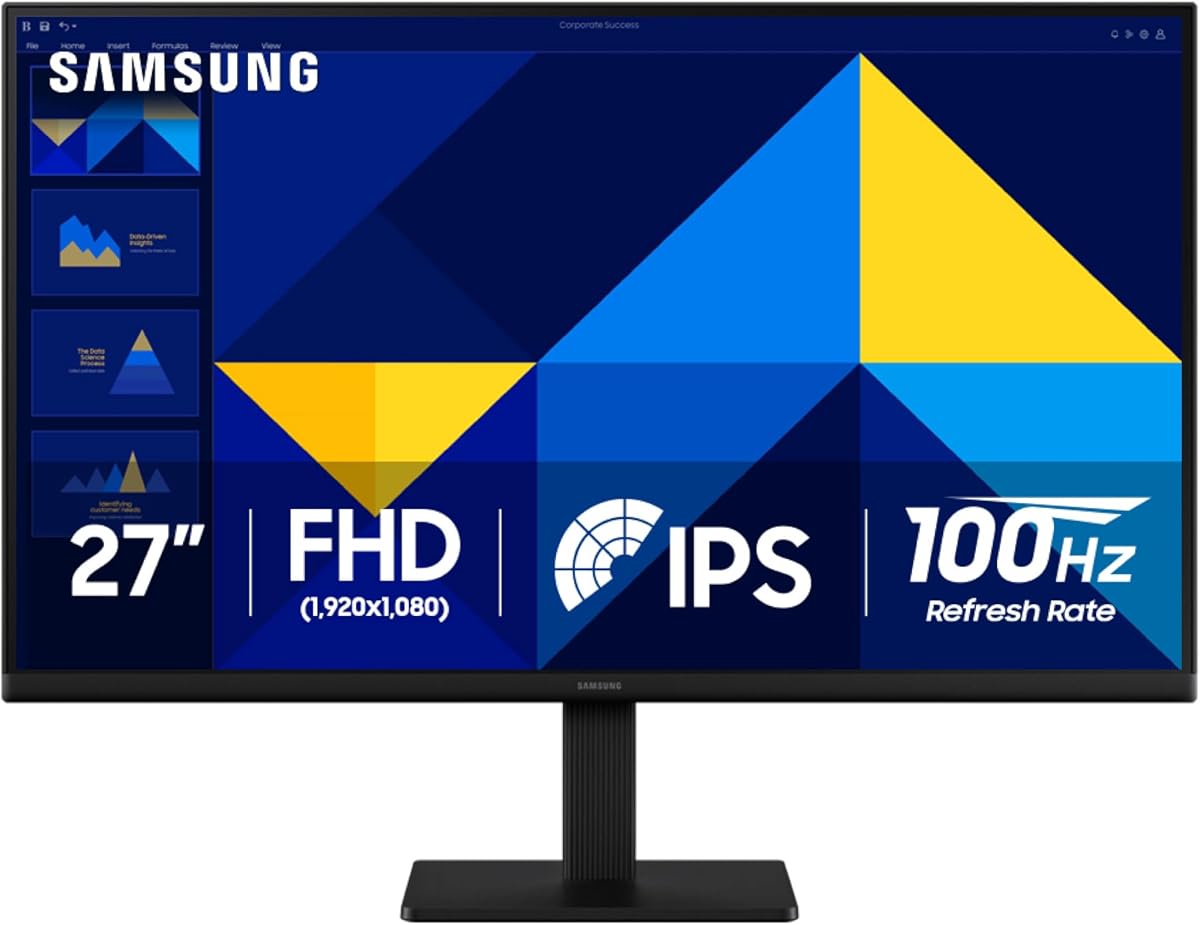
The Samsung 27 S30GD is a 27-inch IPS Essential monitor rated 4.5 out of 5. It offers one of the most approachable ways to assemble a dedicated editing setup, with bright, consistent color, a 100Hz refresh rate, slim bezels, and eye-comfort features designed for regular work sessions.
We may earn a commission when you buy through this link, at no additional cost to you.
Its IPS panel is the most important attribute for a general-purpose retouching monitor. The supplied description emphasizes consistent color across viewing angles, which makes it easier to move between portrait and landscape images without seeing a major shift in hue or brightness. Game Mode and adjustable image settings add practical value, while reduced blue light and screen flicker help with comfort.
The trade-off is that the product information does not claim a wide color gamut or factory-calibrated accuracy. It therefore does not promise the reference-like performance of the ASUS ProArt or the wide-gamut capability of the LG UltraFine. The unspecified native resolution and lack of detailed gamut figures also make it less suitable for users who need verified professional specifications.
This monitor is a strong choice for students, hobbyists, and budget-conscious retouchers who need a dedicated IPS screen for photo cleanup and general content work. It is especially attractive to buyers who value familiar productivity features and a modern appearance. Professionals working in demanding commercial color pipelines should consider a model with published calibration and gamut coverage.
Color consistency across the screen and at different viewing angles reduces the chance that a gradient or skin tone will look correct from only one position. That makes the S30GD practical for leaning closer to inspect small details or moving around a compact desk.
The 100Hz refresh rate keeps routine navigation responsive, while the slim design and simple feature set minimize distractions. It works well for masking, cleanup, cropping, and general corrections that do not require a specialized wide-gamut reference display.
We may earn a commission when you buy through this link, at no additional cost to you.
The Samsung ViewFinity S7 S71H is a 27-inch 4K UHD IPS monitor rated 4.6 out of 5. Its 3840 by 2160 resolution is its defining advantage for retouching because it provides substantially more pixel density than a QHD screen, allowing photographers to inspect fine texture, edges, dust, and small tonal transitions without constant zooming.
We may earn a commission when you buy through this link, at no additional cost to you.
HDR10 optimizes contrast and is described as supporting a gamut of more than one billion accurate colors. The high pixel density also makes the display useful for intricate designs, complex diagrams, and detailed editing interfaces. HDMI and DisplayPort connectivity provides a straightforward setup, while Game Mode can quickly adjust color and contrast for different content.
Eye Saver Mode is certified by TÜV to reduce blue light and prevent screen flickering, adding comfort during long editing days. On the other hand, the provided product information does not specify factory calibration, a measured Delta E value, or a particular professional color gamut. Those omissions matter more for color-critical work than the headline 4K resolution alone.
The S7 is best for retouchers who need to view large, highly detailed files in a compact 27-inch footprint. It is also compelling for hybrid creative setups because the high resolution provides more room for panels and reference images. Buyers who need guaranteed reference-grade color should select a model with explicit calibration data and gamut measurements.
A 4K canvas makes stray hairs, halos, edge artifacts, and dust easier to identify at the normal editing zoom level. This reduces the need to magnify every region, which can make the overall correction process faster and less error-prone.
HDR10 can provide a useful preview of scenes containing bright highlights and deep shadows. It is most effective when the editing application and operating system are configured correctly, and it should complement rather than replace a properly managed SDR workflow.
We may earn a commission when you buy through this link, at no additional cost to you.
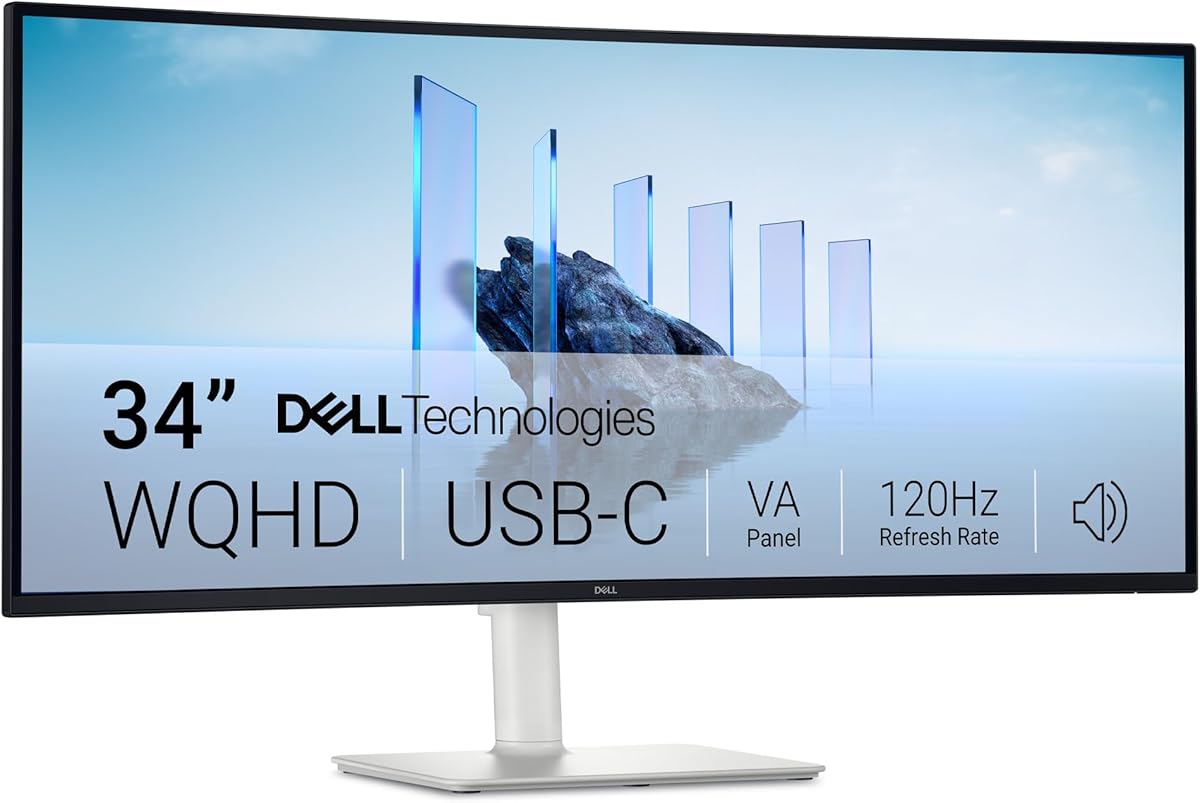
The Dell S3425DW is a 34-inch WQHD monitor rated 4.4 out of 5. Its defining strengths are a generous 3000:1 contrast ratio, 99% sRGB and 95% DCI-P3 coverage, and a wide physical format that lets retouchers keep editing tools, references, and the image visible together.
We may earn a commission when you buy through this link, at no additional cost to you.
The VA panel can produce convincing depth and rich blacks, making it well suited to checking shadow-heavy images and scenes with strong contrast. A 120Hz refresh rate, 0.03ms response time, and AMD FreeSync Premium Premium support smooth interaction. Improved ComfortView Plus reduces harmful blue-light emissions to no more than 35% without sacrificing stated color accuracy.
Connectivity is particularly convenient for modern creative desks. A single USB-C cable can provide up to 65W of power delivery, reducing cable clutter while connecting the display to a compatible computer. The built-in sound system is also upgraded for more detailed output, though monitor speakers do not replace a calibrated audio reference for editing.
The S3425DW is a good match for retouchers who want more workspace than a conventional 27-inch screen without moving to a professional 4K or 6K panel. Its high contrast and broad color coverage are compelling, but the lack of a published factory-calibration result means serious color-critical users should verify performance with their own measuring equipment.
The 34-inch format creates a more useful horizontal canvas than a standard 27-inch display. You can place a histogram, reference image, brush panel, and layers beside the main image without constantly hiding and reopening tools.
A stated 3000:1 contrast ratio gives the VA panel a meaningful advantage when judging blacks and deep tonal separation. Keep the display at a consistent viewing angle, since VA contrast behavior can change as the viewing position shifts.
We may earn a commission when you buy through this link, at no additional cost to you.
The LG 32U990A-S is a 32-inch UltraFine 6K monitor rated 3.9 out of 5. Although that is the lowest rating in this roundup, its specifications make it the most specialized creative display here: 6144 by 3456 resolution, 224 pixels per inch, more than 21 million pixels, and a professional emphasis on color accuracy and high-resolution production.
We may earn a commission when you buy through this link, at no additional cost to you.
Its stated coverage of 99.5% Adobe RGB, 98% DCI-P3, and real 10-bit color makes it highly relevant to retouchers working across print-oriented and display-oriented workflows. The Nano IPS Black panel offers up to a 2000:1 contrast ratio, while VESA DisplayHDR 600 supports more convincing highlights and shadow detail. Together, these specifications target image editing, 3D rendering, color grading, and detailed photo finishing.
Thunderbolt 5 provides fast transfers, 96W power delivery, DisplayPort 2.1 support, and daisy chaining. These features can simplify a professional desk and allow a single cable to carry video, data, and power. The stand supports tilt, height, and pivot adjustment, which helps bring the large panel into a more comfortable position.
Its 60Hz refresh rate is modest compared with the gaming-oriented models in the guide, and the 3.9 rating indicates some buyer dissatisfaction despite the flagship specifications. It is most appropriate for serious professionals whose work justifies a 6K canvas, wide-gamut accuracy, and premium connection architecture rather than competitive gaming performance.
The 6K panel packs 156% more pixels than a standard 4K display, allowing full-resolution assets and editing interfaces to coexist with sharp visible detail. It reduces the need to zoom for dust, texture, and edge inspection, particularly valuable for commercial product and portrait work.
Wide Adobe RGB and DCI-P3 coverage supports creative work involving both print expectations and digital delivery. The true 10-bit output also provides finer tonal stepping, which can reduce visible banding when adjusting large areas of a smooth gradient.
Thunderbolt 5 delivers a powerful professional hub with fast data transfer, 96W charging, and daisy-chain support. It is especially useful for users moving large photo libraries between devices or arranging more than one display in a focused workspace.
We may earn a commission when you buy through this link, at no additional cost to you.
The ASUS TUF Gaming VG27AQM5A is a 27-inch QHD IPS monitor rated 4.4 out of 5. It combines a 300Hz refresh rate, Fast IPS technology, and a stated minimum 0.3ms gray-to-gray response time with 95% DCI-P3 coverage, giving it a useful balance of creative color capability and exceptional motion performance.
We may earn a commission when you buy through this link, at no additional cost to you.
For retouchers, the 95% DCI-P3 gamut is the most notable feature because it provides room for saturated colors while maintaining a reasonably broad palette. Shadow Boost can reveal detail in dark scenes without over-exposing highlights, and DisplayWidget Center provides mouse-based control over settings. Integrated speakers add convenience for routine review sessions.
The monitor does not include a published factory-calibration result or Delta E specification, so its on-screen accuracy should not be treated as guaranteed reference performance. Its 2560 by 1440 resolution also provides less detail than 4K and 6K alternatives. The 300Hz rate, while impressive, is primarily relevant to gaming and fluid motion rather than still-image editing.
This TUF model suits a retoucher who also games, produces motion content, or wants a responsive display without moving to a professional 4K model. It offers stronger color capability than many general-purpose gaming monitors and remains practical for photo cleanup, content production, and color work that does not demand reference-grade calibration.
The stated 95% DCI-P3 coverage helps the display represent more saturated hues than a basic sRGB-only panel. That is useful for digital campaign assets, game art, and content intended for modern color-managed displays.
A 300Hz refresh rate and 0.3ms minimum response time make interface changes and motion previews feel immediate. ELMB Sync can also operate with variable refresh rate to reduce ghosting and tearing.
We may earn a commission when you buy through this link, at no additional cost to you.
The Samsung ViewFinity S6 S61F is a 27-inch QHD monitor rated 4.3 out of 5. It offers a straightforward combination of a 2560 by 1440 display, 100Hz refresh rate, modern connectivity, and an adjustable stand, making it a practical option for everyday retouching and document-heavy creative work.
We may earn a commission when you buy through this link, at no additional cost to you.
The higher pixel density of QHD gives retouchers more working room than a standard Full HD panel without requiring a high-end professional display. A 100Hz refresh rate reduces lag and motion blur during navigation. The stand's tilt, pivot, and height adjustments make it easier to position the screen correctly for detailed work and long sessions.
Eye comfort technology certified by TÜV is designed to reduce eye strain during extended use. Game Mode provides quick image adjustments, while HDMI and DisplayPort allow straightforward connection to a computer or laptop. However, the supplied specifications do not claim wide-gamut coverage, HDR certification, or a factory-calibrated Delta E value.
The S6 is most appropriate for hobbyist photographers, students, educators, and general users who need an efficient editing display without specialist color credentials. It is particularly useful when frequent document scrolling and a comfortable adjustable stand matter more than working in Adobe RGB or DCI-P3. A professional color workflow calls for a more explicitly specified alternative.
Height, pivot, and tilt adjustments help place the QHD panel at a comfortable height and angle. This is a meaningful practical advantage during repeated crop, mask, and cleanup tasks where a fixed display can encourage poor posture.
The 2560 by 1440 resolution offers a useful middle ground between Full HD and 4K. It provides enough space for editing controls and larger image views while remaining broadly compatible with common laptop and desktop outputs.
We may earn a commission when you buy through this link, at no additional cost to you.
The AOC Q27G41ZE is a 27-inch QHD IPS monitor rated 4.6 out of 5. Its standout specifications are a 240Hz native refresh rate that can be overclocked to 260Hz, a 0.3ms MPRT, and Adaptive-Sync support across AMD and NVIDIA GPUs, all of which make it a fast option for hybrid work and play.
We may earn a commission when you buy through this link, at no additional cost to you.
The IPS panel promises wide viewing angles and precise image quality, while 300-nit brightness and a 1000:1 contrast ratio provide a capable foundation for general photo editing. Shadow Control and Game Mode presets can help reveal dark areas or configure the screen for different content. A graphical on-screen display keeps adjustment straightforward.
The product information does not specify color-gamut coverage or factory calibration. Those omissions limit its appeal for users who need a known wide-gamut or reference-grade display. Although the QHD resolution is practical, it also means fewer pixels than 4K and 6K options for examining highly detailed photographs at a larger scale.
The Q27G41ZE is a good fit for a retoucher who wants smooth previews and gaming performance in a single display. Its thin three-sided bezel and textured black-and-red finish suit modern gaming desks, while the IPS panel makes it more broadly useful for design and content work than a tiny specialized display.
A 0.3ms MPRT and high overclocked refresh rate produce a notably quick response. That is helpful when reviewing animation, scrubbing clips, or assessing a retouched image inside a motion sequence where latency can interrupt concentration.
Shadow Control can make dark regions easier to inspect during editing, while Game Mode provides quick starting points for different types of content. These tools are convenient, though consistent color judgment still benefits from controlled lighting and calibration.
We may earn a commission when you buy through this link, at no additional cost to you.
The ASUS ProArt PA279CV is a 27-inch 4K UHD USB-C professional monitor rated 4.4 out of 5. Its defining credentials are Calman Verified factory calibration, a stated Delta E below two, 100% sRGB coverage, and 100% Rec.709 coverage, giving retouchers more explicit accuracy information than most gaming-oriented alternatives in this guide.
We may earn a commission when you buy through this link, at no additional cost to you.
At 3840 by 2160, the display offers enough pixel density to inspect fine texture, dust, edges, and small tonal transitions without relying entirely on application zoom. USB-C connectivity includes 65W power delivery, while separate DisplayPort, HDMI, and a USB 3.1 hub make it easier to combine a laptop, desktop, peripherals, and storage devices.
One point of caution is inconsistency within the supplied product information. Although the product title and professional positioning identify a 27-inch 4K UHD monitor, one listed display specification refers to a 23.8-inch Full HD panel. Buyers should confirm the actual panel, native resolution, and included features on the listing before purchase. The product is primarily focused on professional color work rather than gaming.
For photographers and retouchers seeking a conventional professional workflow, the PA279CV is an excellent candidate because it combines high resolution, documented sRGB accuracy, and single-cable power delivery. A five-year warranty adds reassurance for long-term creative use. It is the strongest fit here for users who prioritize dependable color accuracy over high refresh rates.
Calman Verified factory calibration and a stated Delta E below two indicate that the display is tuned for accurate color reproduction out of the box. This gives serious retouchers a dependable baseline while still allowing room for further calibration when their workflow requires it.
The 4K canvas provides a large, detailed working area, while 65W USB-C power delivery can reduce the number of cables needed when working from a compatible laptop. DisplayPort, HDMI, and the USB hub preserve flexibility for a full desktop setup.
The stated warranty combines three years of coverage with a two-year extension available through online registration. That extended coverage is useful for professionals who expect to keep the display in a demanding creative workspace for several years.
We may earn a commission when you buy through this link, at no additional cost to you.
The best monitor for retouching balances image accuracy, usable resolution, comfortable viewing, and a workflow that fits the type of work you perform. A larger or faster display is not automatically more accurate, so consider the specifications and features that directly support your editing decisions.
Color gamut describes the range of colors a display can reproduce, while color accuracy indicates how closely those colors match their intended values. The ProArt PA279CV is explicit about 100% sRGB coverage and a Delta E below two, while the LG UltraFine reaches 99.5% Adobe RGB and 98% DCI-P3. The ASUS ROG and Samsung Odyssey OLED also provide substantial DCI-P3 figures. For general web and social content, a reliable sRGB workflow is usually sufficient; print, cinema, and broad commercial projects may justify wider gamut coverage.
Choose based on your actual delivery targets and published measurements, not on marketing labels alone. Factory calibration is helpful, but periodic calibration and controlled lighting remain important.
Resolution determines how much information can be displayed without scaling and how finely small features can be inspected. The LG UltraFine's 6K panel provides 224 PPI across 32 inches, while the ProArt and Samsung ViewFinity S7 provide 4K in a 27-inch format. QHD models such as the AOC, Samsung S6, ASUS TUF, and Odyssey OLED G6 offer a useful middle ground and generally make multitasking less demanding.
Higher resolution helps with detailed retouching, but it also requires a capable graphics system and well-scaled interface. Prioritize a native panel that provides enough pixels for your images, then ensure your software scaling is comfortable.
Contrast affects how easily a retoucher can distinguish dark tones, subtle shadows, and bright highlights. OLED models can provide exceptional black levels, while the Dell S3425DW lists a 3000:1 VA contrast ratio and the LG UltraFine uses Nano IPS Black with up to 2000:1 contrast. DisplayHDR 600 on the LG adds another layer of high-dynamic-range capability, whereas DisplayHDR 400 on the ASUS ROG supports deeper black presentation.
Compare contrast in the panel technology and consider how you will work. HDR is valuable for content that includes it, but it cannot compensate for a lack of color accuracy or an unsuitable editing environment.
IPS is often a sensible default because it generally provides consistent color and viewing angles. The Samsung S30GD, ViewFinity models, AOC Q27G41ZE, ASUS TUF, and ProArt use IPS. VA can offer high contrast, as with the Dell, but its tonal consistency may be more sensitive to viewing angle. QD-OLED and WOLED options deliver very dark blacks and fast response times, which can benefit both still and moving work.
Choose a panel whose behavior suits your room and posture. If you often view the display from the side, prioritize documented angle stability; if you work in a controlled studio, OLED black levels may be more compelling.
Refresh rate matters most for motion, gaming, and fluid interface feedback, but it can also make scrubbing and live previews feel immediate. The ASUS TUF reaches 300Hz, the Odyssey OLED G6 and ASUS ROG use 240Hz, and the AOC can overclock to 260Hz. The LG UltraFine operates at 60Hz, prioritizing resolution and color rather than competitive motion performance.
A still-image retoucher does not need the highest possible rate to do excellent work. Treat speed as a workflow benefit, not a substitute for resolution or accuracy.
USB-C can simplify a laptop-based creative desk by carrying video, data, and power over one connection. The ProArt offers 65W power delivery, the Dell supports up to 65W, and the LG UltraFine uses Thunderbolt 5 with 96W delivery, fast transfers, and daisy chaining. DisplayPort and HDMI remain important for desktop systems and mixed device arrangements.
Match the ports and power rating to your computer. Check whether your workflow needs a USB hub, multiple displays, high-resolution daisy chaining, or regular access to external storage.
A retouching monitor may be used for many hours, so adjustability matters as much as raw image quality. The Samsung ViewFinity S6 supports tilt, pivot, and height adjustment. The Odyssey OLED G6 includes an adjustable ergonomic stand, the LG supports tilt, height, and pivot, and several models include reduced-blue-light or flicker-reduction technologies.
Position the top of the screen near eye level, keep the viewing distance consistent, and use a controlled lighting setup. Comfort features help during long sessions, but they cannot replace good ergonomics.
A 27-inch display is the standard starting point for photo editing because it offers a familiar balance of detail and physical footprint. A 34-inch model provides additional horizontal space for layers, histograms, and references, while a 32-inch 6K display offers more pixels at a larger physical size. Some retouchers prefer one calibrated display, while others value a large canvas and a separate reference screen.
Consider desk depth, viewing distance, and application layout. The most capable display is not the one with the longest specification list; it is the one that lets you evaluate the full image accurately and comfortably.
Set the display to its native resolution, select the correct color profile in the operating system, and make sure the editing application uses the same profile. Brightness should be set according to the viewing environment rather than to maximum output. For consistent judgment, control room lighting, use a neutral desktop, and allow the display to warm up before beginning detailed color work.
Calibrate the monitor with a colorimeter when accurate output matters. Save a separate profile for each display, display mode, and lighting condition rather than changing settings unpredictably. Avoid using vivid operating-system filters as a substitute for calibration, and test important images through the intended export and delivery workflow to identify any changes introduced by the color pipeline.
OLED models benefit from sensible image-management habits because static elements can contribute to uneven aging. Use screensavers or blanking features during breaks, avoid leaving bright static menus unattended, and keep the display's protective features enabled. IPS and VA screens require fewer burn-in precautions, but all monitors benefit from ventilation, careful cleaning, stable power, and cable management.
For many professional workflows, 4K provides a useful balance of detail, screen footprint, and system requirements. It lets editors inspect texture, edges, dust, and small tonal changes at a useful zoom while keeping panels and references visible. A higher-resolution 6K display can be beneficial for very large files, but the difference may not justify its cost for general retouching.
OLED can be excellent because it delivers very deep blacks, strong perceived contrast, and fast response times. Those traits make shadow detail easier to inspect and motion previews feel immediate. However, wide gamut, factory calibration, sustained brightness, workspace, and burn-in habits should also be considered before choosing an OLED over a calibrated IPS display.
Wide gamut is most important when preparing images for print, cinema, or displays with a broad color range. Standard sRGB work for websites and social platforms can be performed accurately on a good sRGB monitor. If you work across multiple destinations, a display with both strong accuracy and wide coverage gives you more flexibility.
It can make navigation, masking, zooming, and interface interaction feel smoother, but refresh rate does not directly improve image accuracy. Resolution, gamut, calibration, contrast, and viewing conditions have a greater effect on the final result. A high-refresh monitor is especially attractive if you also edit motion or play games.
A curved screen can provide a wide field of view and may feel immersive for large workspaces. For retouching, however, flat geometry can make it easier to judge straight lines and judge the edges of a frame consistently. Choose curvature based on your desk, viewing distance, and visual comfort rather than assuming it is always superior.
Factory calibration reduces the amount of adjustment required to achieve dependable output and is especially valuable for users who lack color-management experience. It does not eliminate the need for controlled lighting or occasional recalibration, but a documented Delta E specification and verified gamut provide a more reliable starting point than an unspecified gaming display.
USB-C is not required, but it can simplify a laptop-based setup by carrying display video, data, and power through one cable. Its value increases when the monitor provides enough power delivery, a useful hub, or support for multiple displays. Desktop users may still prefer dedicated DisplayPort and HDMI connections.
Yes, provided the display has suitable resolution, color performance, and viewing angles. Ultrawide formats are useful when keeping the image, layers, histogram, and reference images visible at once. For judging geometric distortions or performing final pixel-level inspection, it can help to temporarily zoom or use a more conventional display as a reference.
The LG 32U990A-S takes the premium position for creators who need a true 6K canvas, wide Adobe RGB and DCI-P3 coverage, Nano IPS Black contrast, and Thunderbolt 5 connectivity. The ASUS ProArt PA279CV is the most practical professional choice for calibrated 4K work, while the Samsung 27 S30GD offers the most affordable route to a dedicated IPS editing display.
Prioritize the features that affect your decisions: documented accuracy for color-critical work, high resolution for fine detail, OLED or high contrast for evaluating deep tones, and ergonomic adjustment for long sessions. Refresh rate, gaming features, and wide gamut can add value, but they are most useful when they support the kind of media and delivery formats you actually handle.
Before purchasing, verify the current specification, native resolution, ports, stand adjustment, warranty terms, and included accessories. Product configurations and prices can change, so check the current listing and manufacturer details before making a final decision.